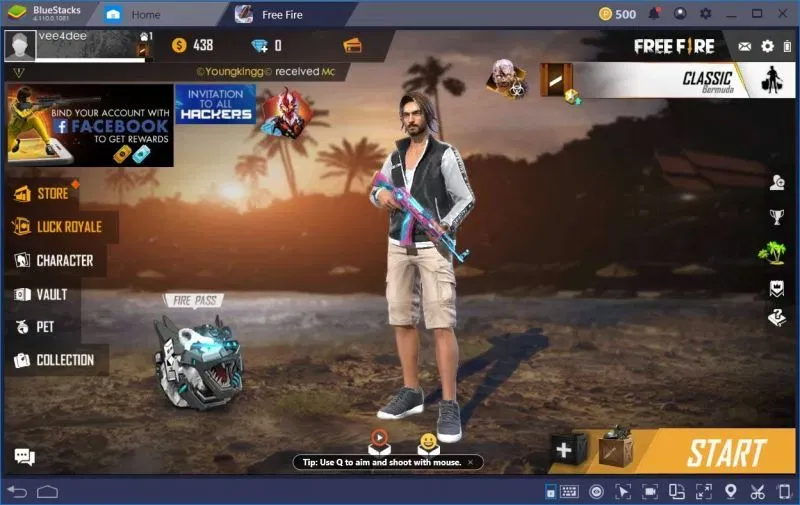

best emulator for free fire is a search almost every serious Free Fire player makes at least once—usually right after a frustrating match where the phone heats up, the FPS drops, and your aim suddenly feels like it’s fighting against you.
If you’ve ever lost a clutch moment because your screen froze for half a second, you already understand why emulators are popular.
Free Fire is fast. It rewards sharp movement, quick reactions, and clean headshots. But on mobile, your performance depends on more than just skill. It depends on battery health, device temperature, RAM limits, background apps, and even how stable your internet stays during a fight.
That’s where PC emulators come in.
They give you a bigger screen, more stable performance, and the biggest advantage of all—keyboard and mouse control. But not every emulator is built the same. Some run Free Fire beautifully. Others lag, crash, or feel delayed during fights.
This guide is written to help you choose the right emulator, set it up properly, and enjoy Free Fire on PC without headaches. No confusing tech language. No overhyped claims. Just real advice based on what matters to actual players.
Table of Contents
ToggleWhy Free Fire Players Switch to Emulator (The Real Reasons)
Most players don’t switch because they want to “cheat” or show off.
They switch because they want comfort and consistency.
On PC, you can play longer without hand fatigue. You can see enemies more clearly. You can react faster with a mouse. And you can control your movement with more accuracy.
For many players, the biggest upgrade is stability.
When your game runs smooth, your skills show properly. When your game stutters, even the best player looks average.
That’s why finding the best emulator for free fire is not just a “nice to have.” For many ranked players, it’s a serious performance upgrade.
What Makes an Emulator “Best” for Free Fire?
A good emulator for Free Fire isn’t only about high FPS.
It’s about smooth input response, stable aiming, and clean performance during fights.
The best emulators usually offer:
Fast launching and stable gameplay
Good key mapping for movement and shooting
Smooth camera control with mouse
Support for low-end and mid-range PCs
Strong optimization for battle royale games
Minimal crashes during long sessions
You don’t want an emulator that feels good in training mode but breaks during real ranked pressure.
Because Free Fire doesn’t forgive lag in the final zone.
Best Emulator for Free Fire: What Most Players Recommend First
When you ask experienced Free Fire players what emulator feels the most reliable, you’ll often hear a few names repeated again and again.
That’s because the most popular emulators have been tested for years. They’ve been updated multiple times, improved for gaming performance, and optimized for smooth shooting mechanics.
The reason these emulators stay popular is simple: they work.
They support proper controls, run Free Fire without random crashes, and allow stable performance even on average PCs.
And in competitive matches, stability matters more than fancy features.
Smooth FPS vs Stable FPS: What You Actually Need
Many players chase the highest FPS number like it’s the only thing that matters.
But in Free Fire, stable FPS is more important than high FPS.
A constant 60 FPS feels smoother than 90 FPS that keeps dropping to 40 in gunfights.
When FPS drops during a close-range fight, your aim becomes inconsistent. Your drag headshots feel delayed. Your movement becomes slower. And you lose fights you should’ve won.
So instead of maxing everything out, focus on keeping your FPS stable.
That’s one of the smartest ways to get better results with the best emulator for free fire.
Low-End PC? Don’t Worry, You Can Still Play Smooth
Not everyone has a gaming PC.
A lot of Free Fire emulator players are using budget laptops, office PCs, or older systems. And that’s completely fine because Free Fire is lighter than many other battle royale games.
If your PC is low-end, your goal should be smooth gameplay, not ultra graphics.
The right emulator settings can make a huge difference.
Lowering resolution slightly, using balanced graphics mode, and allocating proper RAM can turn a laggy experience into a playable one.
The key is choosing an emulator known for optimization, not just popularity.
The Most Important Setting: Virtualization (VT)
This is where many players mess up.
Virtualization is a CPU feature that helps emulators run faster and smoother.
If virtualization is turned off, your emulator might feel slow, even if your PC is decent.
If virtualization is turned on, you’ll notice faster loading, better stability, and smoother gameplay.
Many players install an emulator, face lag, then uninstall it—without realizing virtualization was the missing piece.
If you want the best emulator for free fire experience, virtualization is almost mandatory.
Key Mapping: The Secret Behind Fast Movement and Headshots
Key mapping is what turns Free Fire into a PC-style shooter.
It lets you move with WASD, aim with mouse, shoot with clicks, and use skills quickly.
A good emulator gives you smart key mapping presets that feel natural.
This matters because Free Fire is all about fast movement.
If your controls feel delayed or awkward, you’ll lose fights even if your aim is good.
When your controls feel smooth, everything becomes easier.
Your movement becomes cleaner. Your gloo wall placement becomes faster. Your aim becomes more consistent.
And your confidence increases automatically.
Mouse Sensitivity: Why Your Aim Feels “Off” on Emulator
A common problem new emulator players face is inconsistent aim.
They say, “My crosshair feels shaky,” or “My drag headshots aren’t landing.”
This usually happens because mouse sensitivity isn’t tuned properly.
If sensitivity is too high, your aim overshoots.
If it’s too low, your flicks feel slow.
The best way to fix this is to start with medium sensitivity, play a few matches, and adjust slowly.
Don’t copy a random YouTuber’s sensitivity just because they look fast.
Your setup, mouse DPI, and comfort are different.
A smooth aim is better than a flashy aim.
Graphics Settings That Actually Help You Win
In Free Fire, visibility matters.
Many players think max graphics will help, but sometimes lower settings give clearer visibility and smoother fights.
A balanced setup often gives the best results:
Smooth frame rate
Clear enemy visibility
Less lag during fights
Better control response
You want to see enemies quickly, react instantly, and keep your FPS stable.
That’s the winning combo.
And once you find the right settings, your gameplay feels more consistent every day.
Is It Safe to Use Emulator for Free Fire?
This is an important question, and it deserves an honest answer.
Using an emulator is not the same as using hacks.
Emulators are tools that let you run Android apps on PC.
However, safety depends on two things:
Whether the emulator is downloaded from official sources
Whether you use fair play and avoid third-party cheats
If you download from random websites, you risk malware or unwanted software.
If you use cheats, you risk bans.
But if you use a trusted emulator and play normally, emulator gaming is a common and accepted part of the Free Fire community.
The safest approach is always to use official downloads and avoid anything that promises “magic headshots” or “auto aim.”
Skill is enough.
Why Some Emulators Lag Even on Good PCs
This frustrates many players.
They have a decent PC, but Free Fire still lags on emulator.
Usually, the problem is not the emulator itself.
It’s the setup.
Common causes include outdated graphics drivers, low RAM allocation, background apps running, wrong rendering mode, or high resolution settings.
Even antivirus scanning in the background can cause stutters.
Once you optimize your PC and emulator settings, the lag often disappears.
So before switching emulators again and again, fix your setup once properly.
That’s the fastest way to enjoy the best emulator for free fire.
Best Rendering Mode for Free Fire (DirectX vs OpenGL)
Most emulators allow you to choose between rendering modes like DirectX and OpenGL.
There is no one “perfect” mode for everyone.
Some PCs run smoother on DirectX, especially on certain graphics setups. Others run better on OpenGL.
If you’re facing lag, black screen issues, or weird graphics bugs, switching rendering mode can help.
The smartest approach is to test both and see which one gives smoother gameplay and fewer frame drops.
Once you find the best match, stick to it.
How to Reduce Input Delay (The Real Competitive Advantage)
In Free Fire, input delay is deadly.
If your shooting feels delayed by even a small amount, you lose close-range fights.
To reduce input delay:
Use stable FPS settings
Avoid running too many apps in the background
Use performance mode on your PC
Keep your emulator updated
Use a wired mouse if possible
A good emulator should already feel responsive, but your PC setup also matters.
When input delay is low, your drag headshots feel clean and natural.
And your gloo wall timing becomes faster too.
Free Fire Ranked on Emulator: What Changes in Your Gameplay
Playing ranked on emulator feels different.
You’ll notice fights become more aim-focused because mouse control makes tracking easier.
You’ll also notice movement becomes smoother because keyboard control gives you cleaner strafing.
But ranked also becomes more intense because you’ll face stronger players who also use emulators.
So don’t expect “easy wins.”
Expect better performance, better control, and a higher skill ceiling.
The emulator doesn’t make you a pro overnight.
It gives you the tools to become one faster.
Best Practices for Long Sessions Without Crashes
One of the biggest advantages of a good emulator is long stable gaming sessions.
But if your emulator crashes after an hour, it ruins the mood.
To prevent crashes, keep your emulator updated, avoid running heavy software in the background, and don’t allocate extreme RAM settings if your PC can’t handle it.
Also, avoid overheating your PC.
Yes, PCs can overheat too, especially laptops.
When your system stays cool, performance stays stable.
And stable performance is what you want for Free Fire.
Real Player Story: The Moment Emulator Gaming Clicks
I’ve seen this happen with many players.
At first, they struggle.
They miss shots, they feel uncomfortable, and they say “mobile is easier.”
Then after a few days, something clicks.
Their movement becomes natural. Their aim becomes steady. Their reaction time improves. And suddenly they’re winning fights they used to lose.
That’s the emulator learning curve.
The first day feels weird.
The seventh day feels powerful.
That’s why choosing the right emulator matters. It helps you get past the awkward stage faster.
And once you do, Free Fire becomes a different experience.
How to Pick the Emulator That Fits Your PC
The best emulator depends on your system.
If you have a strong PC, you can run higher settings and enjoy smoother visuals.
If you have a mid-range PC, you want balanced settings and stable FPS.
If you have a low-end PC, you need an emulator known for optimization and low resource usage.
There’s no shame in playing on lower graphics.
Free Fire is about skill, timing, and decision-making—not about ultra shadows.
Your goal is to play smoothly and consistently.
That’s the real meaning of choosing the best emulator for free fire.
The Smart Way to Improve After Switching to Emulator
Once you switch to emulator, don’t jump into serious ranked immediately.
Spend time in training mode.
Practice movement, gloo wall placement, quick scope timing, and drag headshots.
Then play casual matches to build confidence.
Within a week, your improvement will be noticeable.
And if you stay consistent, your rank climb becomes smoother because your gameplay becomes more stable.
That’s the real advantage of emulator gaming.
Final Tip: Focus on Stability, Not Hype
There are many emulators out there.
Some are heavily promoted. Some look flashy. Some promise “best FPS” but don’t deliver.
The best emulator is the one that runs Free Fire smoothly on your PC, gives stable controls, and doesn’t crash in important moments.
That’s what wins matches.
That’s what builds confidence.
And that’s what most players actually mean when they search best emulator for free fire.
best emulator for free fire choices can give you a huge advantage, but only when you choose wisely and set it up properly.
Read also:
best sensitivity for free fire one-tap headshot 2024
best sensitivity for free fire one-tap headshot
roblox skin
best one tap sensitivity for free fire